Android XR Trackables
Trackables can provide information about the physical space the player is in.
Note
Android XR Trackables shouldn't be confused with OpenXR Spatial Entities, which provide similar functionality and are also supported on Android XR.
OpenXR Spatial Entities are the new system, which will eventually replace Android XR Trackables. But, at the moment, there are still features in Android XR Trackables that aren't present in OpenXR Spatial Entities.
If you don't need any of those features, we highly recommend using OpenXR Spatial Entities instead.
Project Settings
To use Android XR Trackables, you'll have to enable one or more of its features.
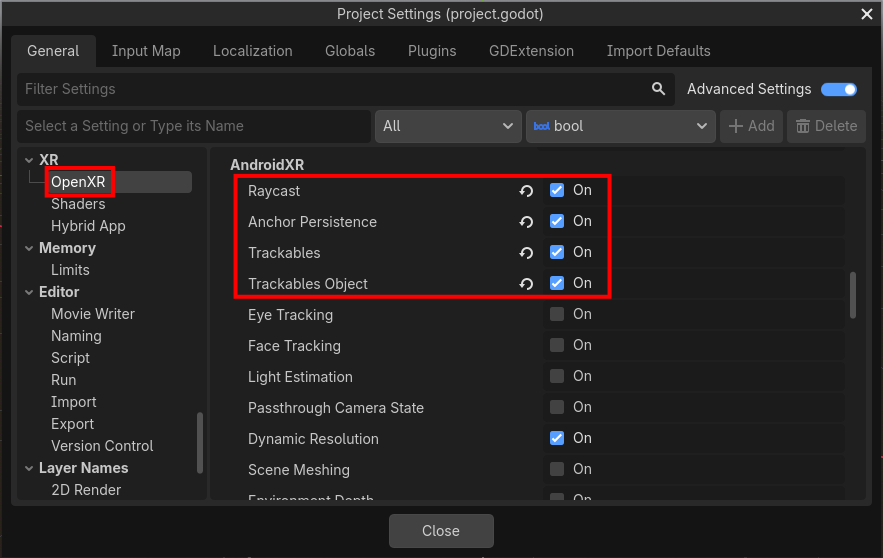
Open up Project Settings and navigate to the OpenXR section. In the AndroidXR subcategory, there are four checkboxes:
Trackables: This must be enabled to use any Android XR Trackables feature. On its own it provides plane detection (walls, floor, and other flat surfaces).
Trackables Object: Detects a mouse, keyboard or laptop. A common use-case is to provide a "cut out" so the player can see the real objects through the virtual scene.
Raycast: Allows casting rays into the physical environment and getting a collision point.
Anchor Persistence: Allows placing persistent anchors that will remain in a physical location, even after the app has been quit and launched again later.
Permissions
Trackables requires the android.permission.SCENE_UNDERSTANDING_COARSE
permission, which will automatically be requested when your application
starts up if Android XR Trackables is enabled and the
Automatically Request Runtime Permissions project setting is on.
If the user hasn't granted this permission previously, they will be
shown a prompt, asking them to allow scene understanding.
However, Trackables won't actually work until after they've granted
the permission, so you may want to connect to the
SceneTree.on_request_permissions_result signal, for example:
func _ready() -> void:
  get_tree().on_request_permissions_result.connect(_on_request_permissions_result)


func _on_request_permissions_result(p_permission: String, p_granted: bool) -> void:
  if p_permission == "android.permission.SCENE_UNDERSTANDING_COARSE" and p_granted:
    # We should now start getting data from Trackables!
    pass
XRTracker and XRAnchor3D
Similar to OpenXR Spatial Entities, Trackables provides most of its information through the use of XRTracker objects which can be obtained by calling XRServer.get_tracker().
Trackables provides three new subclasses of XRTracker:
Each subclass provides unique data associated with that type of tracker.
XRAnchor3D
is a node which will automatically update its position and orientation to match the XRTracker that it's
assigned to via its
tracker
property.
A very common pattern is to:
Connect to the XRServer.tracker_added and XRServer.tracker_removed signals.
Look up the
XRTrackerfor each new tracker that's added.Create a new
XRAnchor3Dfor that tracker and add it as a child of theXROrigin3D.Check the subclass of the
XRTracker, and use that information to add child nodes to theXRAnchor3D, which will be automatically kept at the correct location.Remove the
XRAnchor3Dwhen the tracker is removed.
Plane Detection
Using the XRTracker and XRAnchor3D pattern described above, you can visualize
each plane via code like:
const PlaneVisualScene = preload("res://plane_visual.tscn")

@onready var xr_origin: XROrigin3D = $XROrigin3D

var _visuals: Dictionary


func _ready():
  XRServer.tracker_added.connect(_on_tracker_added)
  XRServer.tracker_removed.connect(_on_tracker_removed)


func _on_tracker_added(tracker_name: StringName, _type: int):
  var tracker: XRTracker = XRServer.get_tracker(tracker_name)
  if not tracker is OpenXRAndroidTrackablePlaneTracker:
    return

  var anchor_node := XRAnchor3D.new()
  anchor_node.tracker = tracker_name
  xr_origin.add_child(anchor_node)

  # Create a custom scene to visually represent the plane, using some of the data
  # from the tracker.
  var plane_visual = PlaneVisualScene.instantiate()
  plane_visual.setup_plane_visual(tracker.get_extents(), tracker.get_plane_type(), tracker.get_plane_label())
  anchor_node.add_child(plane_visual)

  _visuals[tracker_name] = plane_visual


func _on_tracker_removed(tracker_name: StringName, _type: int):
  if not _visuals.has(tracker_name):
    return

  _visuals[tracker_name].queue_free()
  _visuals.erase(tracker_name)
Object Detection
Similarly, using object detection can be done by simply checking for OpenXRAndroidTrackableObjectTracker
objects and using their data.
func _on_tracker_added(tracker_name: StringName, _type: int):
  var tracker: XRTracker = XRServer.get_tracker(tracker_name)
  if not tracker is OpenXRAndroidTrackableObjectTracker:
    return

  # [...]

  # Create a custom scene to visually represent the object, using some of the data
  # from the tracker.
  var object_visual = ObjectVisualScene.instantiate()
  object_visual.setup_object_visual(tracker.get_extents(), tracker.get_object_label())
  anchor_node.add_child(object_visual)

  # [...]
Persistent Anchors
Persistent Anchors work a bit differently, because they are originally created by the application, not simply detected in the world. You create them at runtime (to anchor a virtual object in the real world, for example), and they will be restored after the app has been quit and launched again.
You should still use the XRServer.tracker_added and XRServer.tracker_removed signals to trigger
creating and removing XRAnchor3D nodes to hold the visuals. When persistent anchors are restored
after the application restarts, you'll be notified via XRServer.tracker_added, just like
detected trackables.
To create and persist an anchor initially you can do:
# A new anchor can be attached to another trackable (like a plane).
# Or, if null, then the anchor won't be attached to anything.
var attached_to_trackable: OpenXRAndroidTrackableTracker = null

# The anchor's transform is relative to the current XROrigin3D node.
var anchor_transform := Transform3D()

# This creates the new anchor, but its full position may not be available yet.
var anchor_tracker := OpenXRAndroidTrackablesExtension.create_anchor_tracker(anchor_transform, attached_to_trackable)

# Attempt to persist the anchor.
if not OpenXRAndroidDeviceAnchorPersistenceExtension.persist_anchor_tracker(anchor_tracker):
  push_error("Failed to persist anchor!")
  return

# Get the anchor's UUID, so that it can be associated with something meaningful in the game.
# This will need to be saved in the game's save data, because all that will be automatically
# restored is the UUID, not what it's supposed to represent.
var anchor_uuid := anchor_tracker.get_persist_uuid()
When you no longer need an anchor, you can unpersist and delete it:
anchor_tracker.unpersist()

OpenXRAndroidTrackablesExtension.destroy_anchor_tracker(anchor_tracker)
Ray Casting
Using OpenXRAndroidRaycastExtension you can cast rays into the real world, and detect collisions
against detected planes or against the data from the headset's depth sensor.
var trackable_types := [
  OpenXRAndroidRaycastExtension.TRACKABLE_TYPE_PLANE,
  OpenXRAndroidRaycastExtension.TRACKABLE_TYPE_DEPTH,
]

var ray_origin := Vector3.ZERO
var ray_direction := Vector3.FORWARD
var max_results := 10

var results: Array[OpenXRAndroidHitResult] = OpenXRAndroidRaycastExtension.raycast(trackable_types, ray_origin, ray_direction, max_results)

for hit in results:
  var tracker := hit.get_tracker()

  if tracker and tracker is OpenXRAndroidTrackablePlaneTracker:
    # We hit a plane, represented by this tracker.
    pass

  # The hit gives both position and orientation, with its local Z axis pointing towards the ray origin.
  var hit_pose: Transform3D = hit.get_pose()
Doing a ray cast against depth can be a very slow operation, so doing it every frame is not recommended.
Sample
Check out the Android XR Trackables Sample for a full working demo.