Body and Face Tracking
Note
Check out the Body Tracking Sample Project for a working demo of some Meta and Android XR body and face tracking features.
The Godot OpenXR Vendors plugin supports a number of OpenXR extensions related to body and face tracking from both Meta and Android XR. This document will walk through the provided features and how to use them.
Project Settings
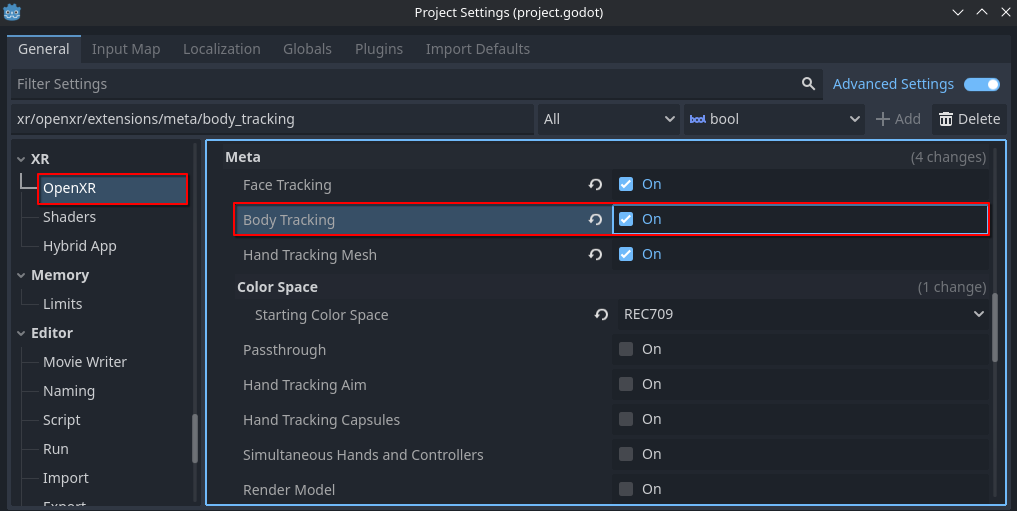
To use body tracking, the vendor-specific body tracking extensions must be enabled in project settings, under the OpenXR section:
Meta supports extensions for Body Tracking and Face Tracking, which can be found in the Meta subcategory.
Android XR supports extensions for Face Tracking and Eye Tracking, which can be found in the Android XR subcategory.
Body Tracking Setup
Body tracking features require a rigged mesh that can be retargeted to the Godot Humanoid layout. See the Godot documentation on Retargeting 3D Skeletons for more info.
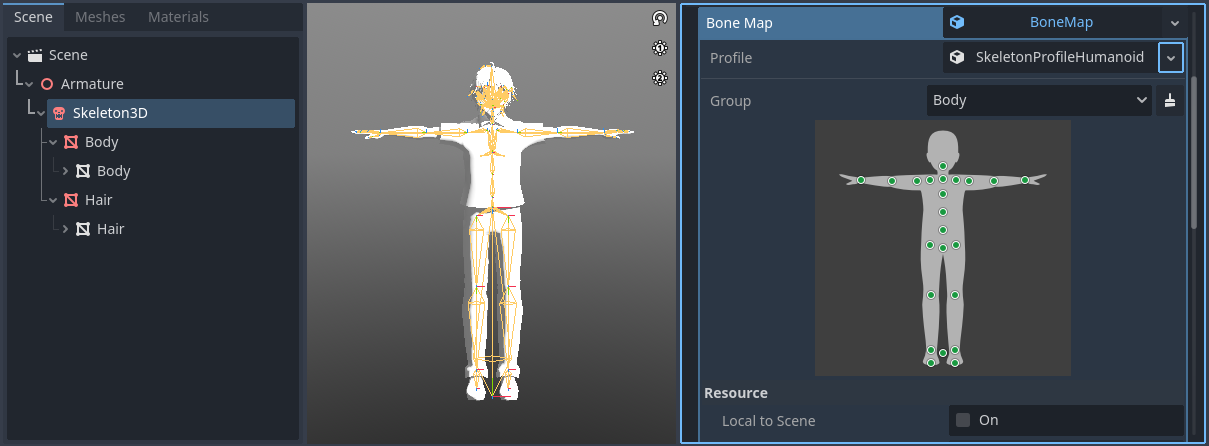
A skeleton being retargeted to the Godot Humanoid profile in the model's import settings
After you have a properly imported skeleton, you can apply body tracking to it with the XRBodyModifier3D node. Add this node as a child of the model's Skeleton3D.
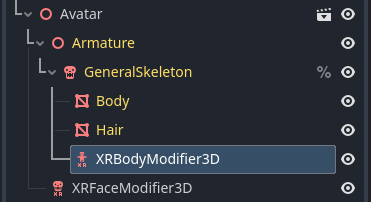
The XRBodyModifier3D node's body_update property lets you indicate which areas of
the skeleton you'd like to apply tracking data to: upper body, lower body, and hands.
The bone_update property specifies how this data is applied: full (rotation and position),
or rotation only.
Note
While hand tracking may be used as a part of body tracking, the hand tracking extension must be enabled to do this. See the documentation on Meta Hand Tracking for more info.
Face Tracking Setup
Face tracking features require a mesh with blend shapes that are compatible with the Unified Expressions standard, ARKit, or SRanipal.
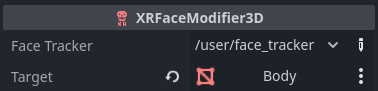
After adding the mesh to your scene, you can apply face tracking to it with the XRFaceModifier3D node. You can add this node anywhere in your scene.
Set the target property to the mesh with the blend shapes:
Additional Meta Extensions
Lower Body Tracking
The basic Meta OpenXR body tracking extension XR_FB_body_tracking only provides data
for upper body tracking. The extension XR_META_body_tracking_full_body, if supported,
is what provides the lower body data. When supported by the runtime, this requires no further
setup. You can check if XR_META_body_tracking_full_body is supported by calling
is_full_body_tracking_supported().
Manual Height Override
When using body tracking, automatic calibration of a user's height will take place.
Should you wish to override this, first check to see if the runtime supports the XR_META_body_tracking_calibration
extension with is_body_tracking_height_override_supported().
If supported, you may suggest an override value within the range of 0.5 and 3.0 meters to
suggest_body_tracking_height_override().
The runtime then may adjust the returned body tracking data to be scaled to this height.
Body Tracking Fidelity
The XR_META_body_tracking_fidelity extension allows users to request that body tracking
data be collected with either a low or high level of fidelity. Check if this extension is supported with
is_body_tracking_fidelity_supported().
If supported, you can request your desired fidelity level using
request_body_tracking_fidelity().
By default, a high level of fidelity is used for body tracking, but low fidelity may be used to
save CPU resources at the cost of lower body tracking precision.
Additional Android XR Extensions
Eye Tracking
Godot has support for the Eye Gaze Interaction extension, which provides a single gaze pose that is filtered and stabilized for use with user interface interactions. However, this may not be the best fit for all use cases, for example, controlling avatar eyes in a social multiplayer application.
The XR_ANDROID_eye_tracking extension provides two eye poses (one for each eye) and can track
when the user blinks.
Similar to Eye Gaze Interaction, you can use it by adding a pair of new XRController3D nodes to
your XROrigin3D node, and set their tracker properties to:
/user/eye_tracker_android/left/user/eye_tracker_android/right
You can check if the blink "button" has been pressed on either XRController3D node to detect
if the user is blinking with that eye.